

Configure Activity Submission Visibility
To configure activity submission visibility, follow the steps below.
-
Go to .
The Processes page appears.
-
Click either Activity Process or Checklist
Process as per your requirement.

The Activity Process or Checklist Process page appears.
-
Click the required process card.

The work processes in the Activity Process are shown in the above screenshot. If you click on the Checklist Process, the work processes in it will appear. -
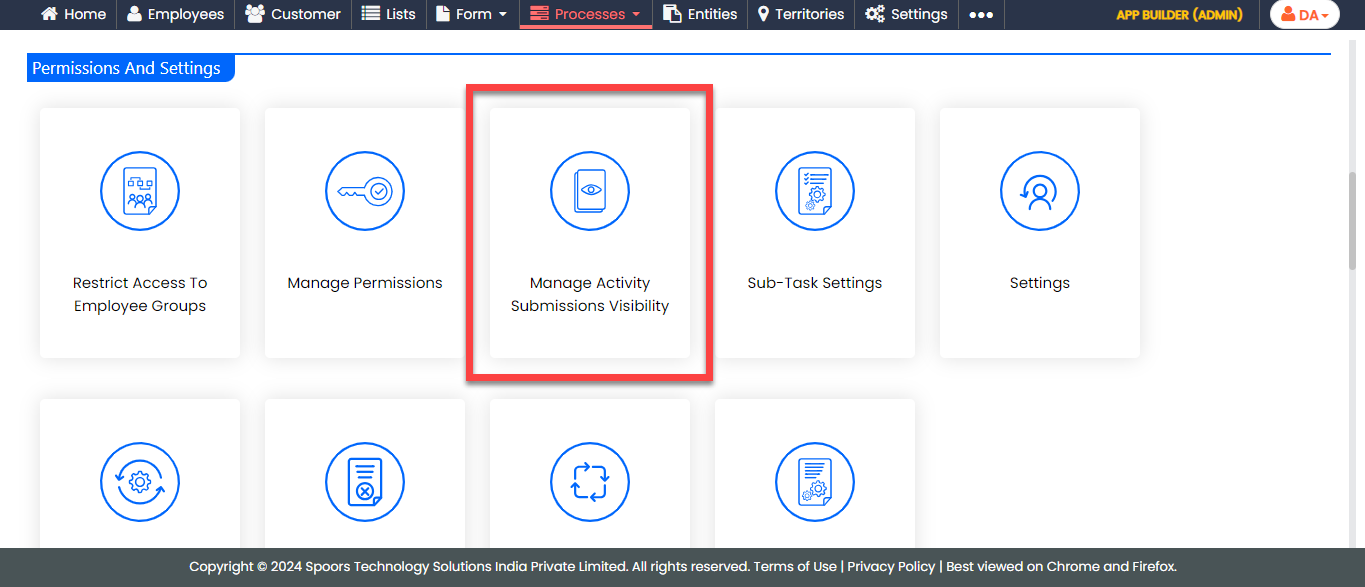
Click the Manage Activity Submissions Visibility card
under the Permissions and Settings section.
-
Select employee field against each activity under the
Employee column.

- Click Save.